
Circle OneClick Manufacturing Advanced Configuration
Manufacturer specific configurations
Production with vhf
DentalCAM 8
Vhf DentalCAM 8 can be configured to use a chairside workflow for an improved integration. To setup this workflow follow these steps inside DentalCAM 8:
- Go to the settings tab
- Disable the manual import of STL files option
- Enable the automatic import of STL files option
- Enable Activate ChairsideCAM
- Press the Apply button to save the configuration
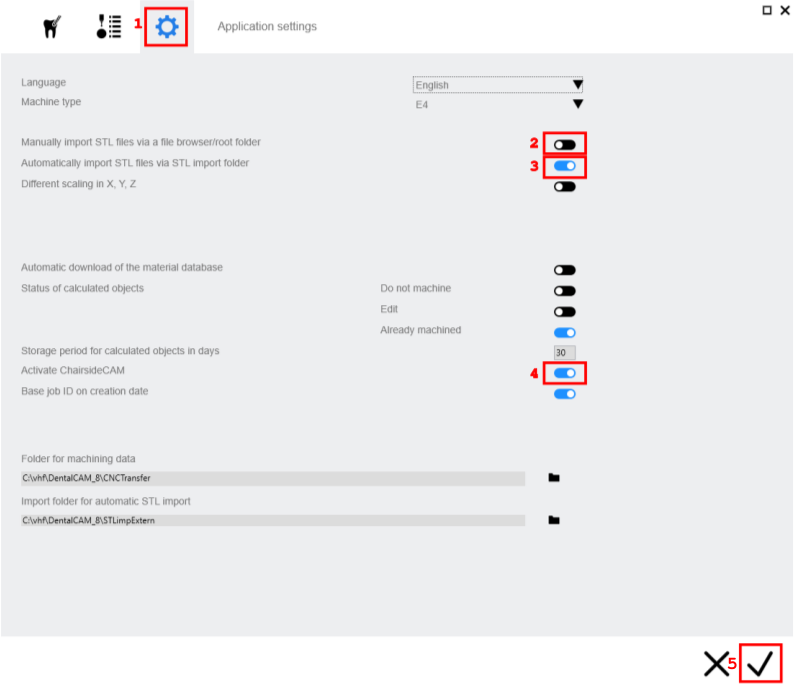
⚠️ Note: If you change the path to the STL import folder in DentalCAM, you must also update its value in the Circle OneClick Manufacturing configuration (in the "Milling Software Settings" tab of the configuration window).
dentalcam 9
Vhf dentalcam 9 does not require any configuration and works for versions 9.1.708 and higher.
Production with Rapid Shape
By default, Circle OneOlick Manufacturing saves processed STL files to the Rapid Shape Print Studio working directory to ensure smooth integration with Rapid Shape. If the Print Studio's working directory cannot be found, Circle OneClick Manufacturing will instead place the case in its own data directory, open it in the file explorer, and alert the user to load the case manually.
Production with DGShape
Circle OneClick Manufacturing integrates with MillBox for DGShape to automate the milling preparation workflow. When processing a case, OneClick opens MillBox, selects the machine and material, and imports each mesh into a separate milling slot. The user then only needs to select the block and launch the milling.
Known limitations:
- MillBox is already open: If MillBox is running when a case is processed, its window is brought to the foreground but no further automation takes place. Close MillBox before processing a case to ensure full automation.
- Multiple machines configured: If more than one machine is available in MillBox, OneClick cannot select one automatically. The user must manually select the machine, material, and milling slots.
- Material not recognized: If the material associated with the case is not found in MillBox, the user must manually select the material and milling slots.
Production with SprintRay
Production with SprintRay can be carried out using either the RayWare desktop slicer or the SprintRay web interface, both of which are supported by OneClick Manufacturing.
- Web workflowDefault: When the web app workflow is selected, a new browser tab opens on the print setup page. The usual SprintRay web workflow can then be used to complete the print.
- Desktop workflowDeprecated : When the desktop option is selected, RayWare will automatically launch upon processing an .ocm file. From there, the standard SprintRay print workflow can be followed. This workflow is deprecated, and only works with the Pro 55 S machine.
Custom Command Configuration
The custom command template system, located in the Advanced Configuration section in the GUI, allows the user to configure external applications to be called with dynamically generated file paths based on case data.

Basic Format
"\pathToCustomApp\customApp.exe" -s {stl} -p {pts}
Components Breakdown
Executable path (Mandatory)
- Format:
"\pathToCustomApp\customApp.exe" - Must be the first element in the template
- Must be enclosed in double quotes (
"") - Contains the absolute path to the executable file
Command Line Arguments
- Format: Everything after the executable path
- Examples:
-s {stl} -p {pts},--batch --stl_files {stl} - Treated as command line arguments
- Can include flags, options and file placeholders
File Extension Placeholders
- Format:
{extension}(curly braces around file extension) - Function: Automatically replaced with corresponding file path from
case_idfolder
Examples
Considering the following file structure:
case_id\
├── example.stl
├── example.pts
└── example.constructioninfo
The following templates will be interpreted as such:
"C:\Program Files\Publisher\program.exe" {constructioninfo}->C:\Program Files\Publisher\program.exe case_id\example.constructioninfo"C:\Program Files\Publisher\program.exe" -s {stl} -p {pts} --verbose->C:\Program Files\Publisher\program.exe -s case_id\example.stl -p case_iddirectory\example.pts --verbose