
Circle OneClick Manufacturing Configuration Guide
This guide provides comprehensive instructions for configuring Circle OneClick Manufacturing for CNC machines and 3D printers in production environments.
Auto-launch from Web Browser
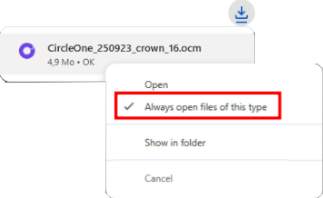
.ocm file types are automatically associated with Circle OneClick Manufacturing during installation. For a seamless experience we recommend using Google Chrome and configuring it to launch all .ocm files on download. To achieve this, right click a recently downloaded .ocm file in the downloads section and select Always open files of this type.
Notifications
If system notifications are enabled, OneClick Manufacturing displays notifications to report case-processing progress. On Windows, notifications can be enabled via Settings > System > Notifications by turning on the Notifications toggle.
Basic Settings
To configure Circle OneClick Manufacturing, launch oneclick.exe. The configuration panel contains four main sections, accessible through tabs at the top of the interface.
Path Configuration Guidelines
- Verify executable paths match your actual software installation locations
- Use full absolute paths to prevent execution errors
Note: If an executable path is not found, a red cross will be displayed next to it.
Milling Software Settings
This section configures executable paths for various milling software packages. Default paths correspond to standard installation locations.
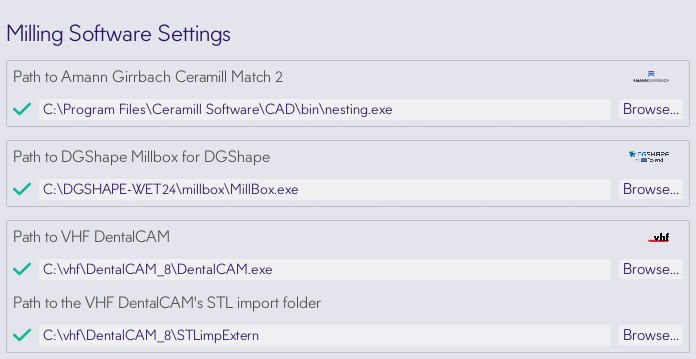
Supported Milling Machines
| Make | CAM |
|---|---|
| Amann Girrbach | Ceramill Nest |
| Roland DGShape | Millbox |
| VHF | DentalCAM |
3D Printing Software Settings
This section configures executable paths for various 3D printing software packages. Default paths correspond to standard installation locations.
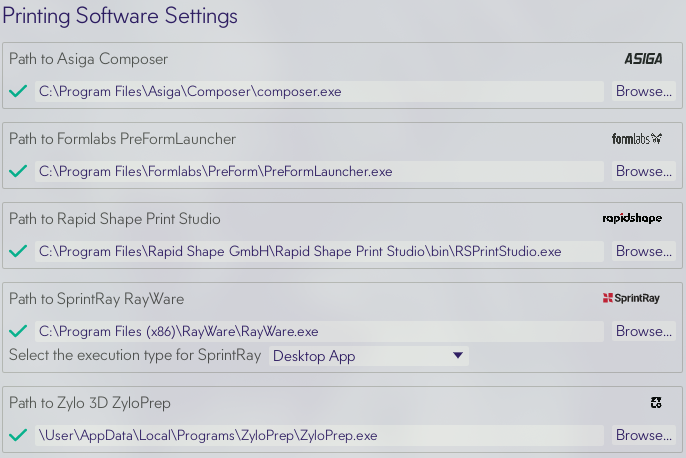
Supported 3D Printing Machines
| Make | Slicer |
|---|---|
| Asiga | Composer |
| Formlabs | PreFormLauncher |
| Shining 3D | AccuWare |
| SprintRay | RayWare Deprecated |
| SprintRay | SprintRay web app Experimental |
| Rapid Shape | Rapid Shape Print Studio |
| Zylo 3D | ZyloPrep |
General Settings
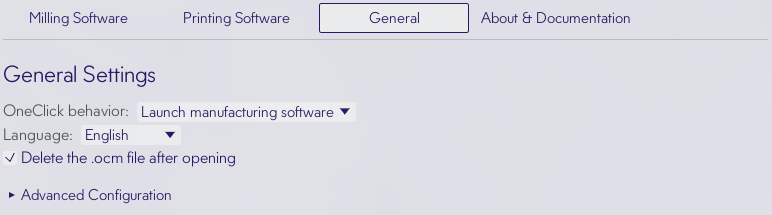
The General tab controls core application behavior and file processing locations.
Notes:
- The processed manufacturing data is stored in
%USERPROFILE%\Documents\Circle OneClick Manufacturing\case_id - Data formatting adapts automatically based on the selected production machine type (refer to supported machines for a complete list of compatible machines).
- For unsupported or unrecognized machines, if a custom command is configured, this command line will be executed when the case is processed. Each case folder contains:
STLgeometry filesPTSpoint cloud files- Generated ExoCAD
*.constructioninfoexport file
Language Configuration
During the first execution, OneClick Manufacturing detects the system's local language and applies it to the UI. The user can modify the UI's language. As of version 2.5.1, the following languages are available:
- English
- French
- German
- Italian
- Polish
- Portuguese
- Spanish
Behavior Configuration
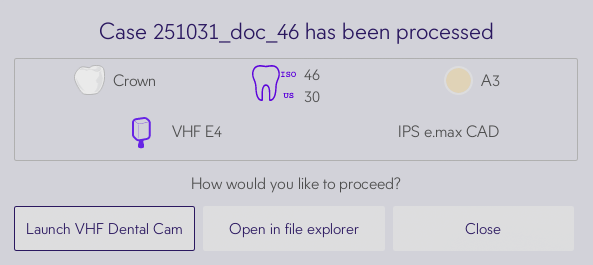
The user can choose the behavior of the application when an .ocm file is processed:
Launch manufacturing software-> Automatically launches the manufacturing software (default behavior)Open case in File Explorer-> Opens the folder containing the case files in the system's default file explorerAlways prompt user-> Displays dialog allowing the user to choose between launching the manufacturing software, opening the case in the file explorer or canceling the action
Automatically Delete Processed Cases
By default, Circle OneClick Manufacturing automatically deletes processed .ocm files. The user may opt to keep the processed files.
Note: The cases that are older than 30 days are automatically deleted.
Troubleshooting Common Issues
- File Processing Failures: Verify source directory permissions
- Software Integration Problems: Confirm executable paths and software licensing