Download
Circle OneClick Manufacturing 2.9.0
Released 2026-07-03 :: Changelog

Installing Circle OneClick Manufacturing
To install Circle OneClick Manufacturing, download and launch the setup file then follow the installation steps.
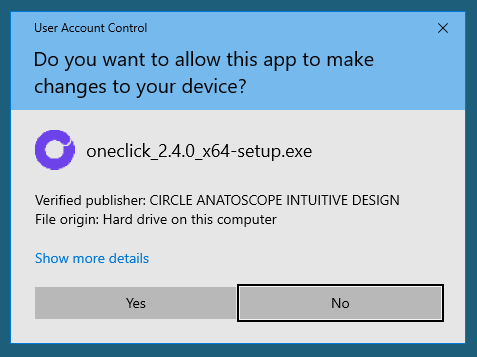
Windows User Account Control
When executing the setup, a Windows User Account Control dialog window can show up before running the installer.
It confirms that the program is published by Circle Dental, and prompts for confirmation.
Click "Yes" to proceed.
Installation steps
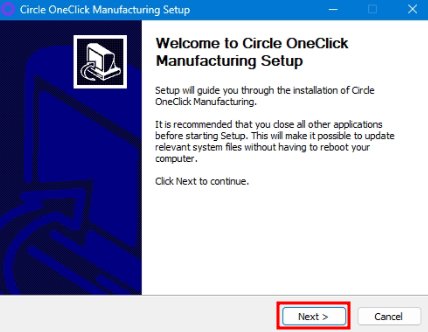
On the Welcome screen press the Next button to proceed with the installation.
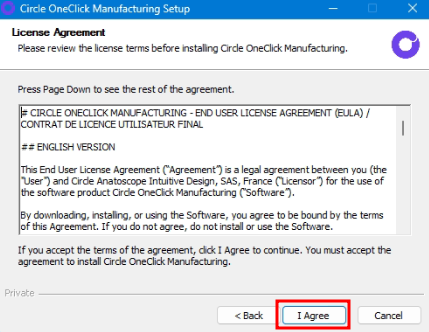
Read the license agreement and press the I Agree button if you agree and wish to continue.
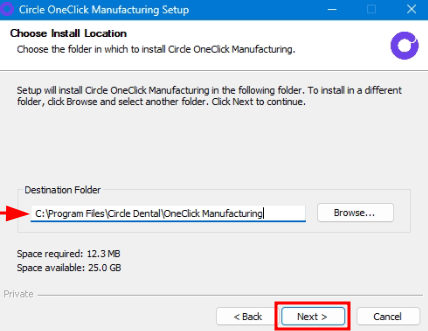
Choose the installation location on your device. It is recommended to use the default value. Press the Next button to proceed.
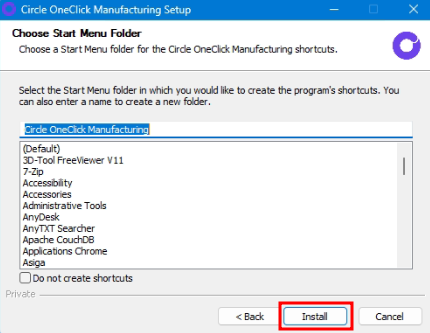
When prompted to create a Start Menu Folder, toggle the Do not create shortcuts if you don't want Circle OneClick Manufacturing to appear in the Start Menu. Press the Install button to start the installation process.
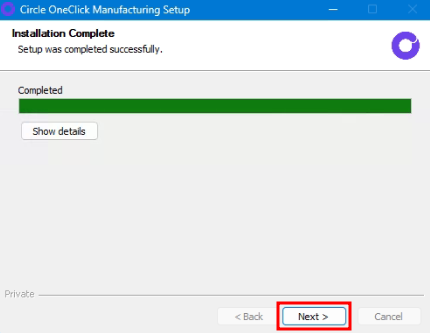
Wait for the installation process to complete and press the Next button to go to the final step.
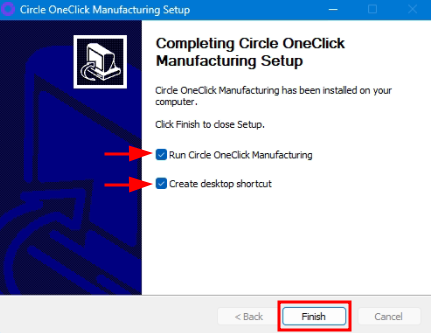
Circle OneClick Manufacturing is now installed on your device and all .ocm files are associated to it. Choose if you want to create a desktop shortcut, and toggle Run Circle OneClick Manufacturing if you wish to proceed its configuration right away. Press the Finish button to complete the installation process. Refer to the configure page to configure Circle OneClick Manufacturing.
Uninstalling Circle OneClick Manufacturing
To uninstall Circle OneClick Manufacturing, launch the installation file and follow the installation steps.
On the Welcome screen press the Next button to proceed with the installation.
Read and press the I Agree button if you agree with the license agreement content and wish to proceed.
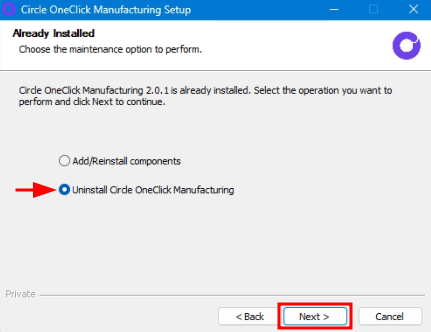
Select Uninstall Circle OneClick Manufacturing and press the Next button to go to the next step.
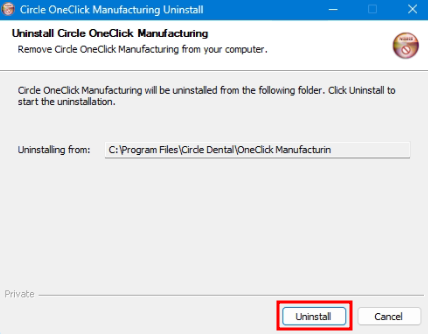
Press the Uninstall button. Circle OneClick Manufacturing is no longer present on your device.